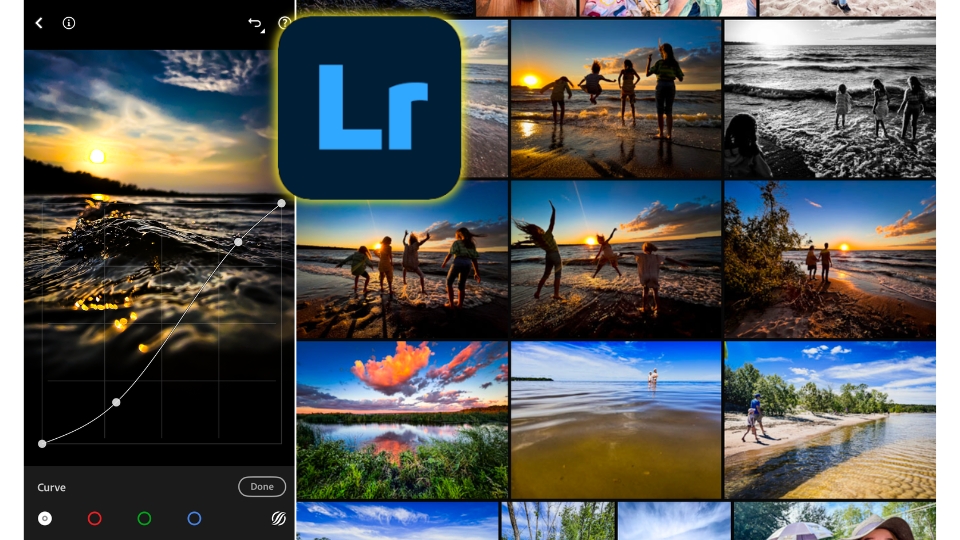
Getting Started in Photo Editing
If you want to start editing your phone photos, the best editing app (hands down!) is Lightroom Mobile*. I always recommend this app to my students because of two main points:
- it’s a free app
- it’s made by Adobe – the #1 choice by the vast majority of professional photographers
I’ve been using Lightroom since 2008 to edit all my professional photography. It’s incredibly powerful, sophisticated yet user-friendly. For years it was only available for desktop computers, but now that they released a mobile app, it’s what I use for all my iPhone photo editing.
And don’t worry – if you choose Lightroom, you’re not missing out on a better photo editing app out there. This really is the best one!
It’s easy to use, yet has powerful tools for more advanced editing.
Click here to get the app:
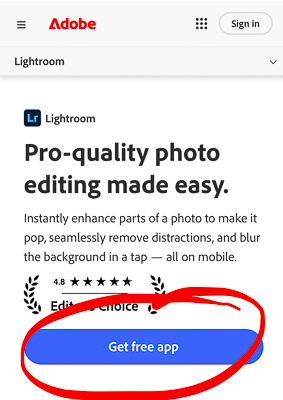
How to start using Lightroom:
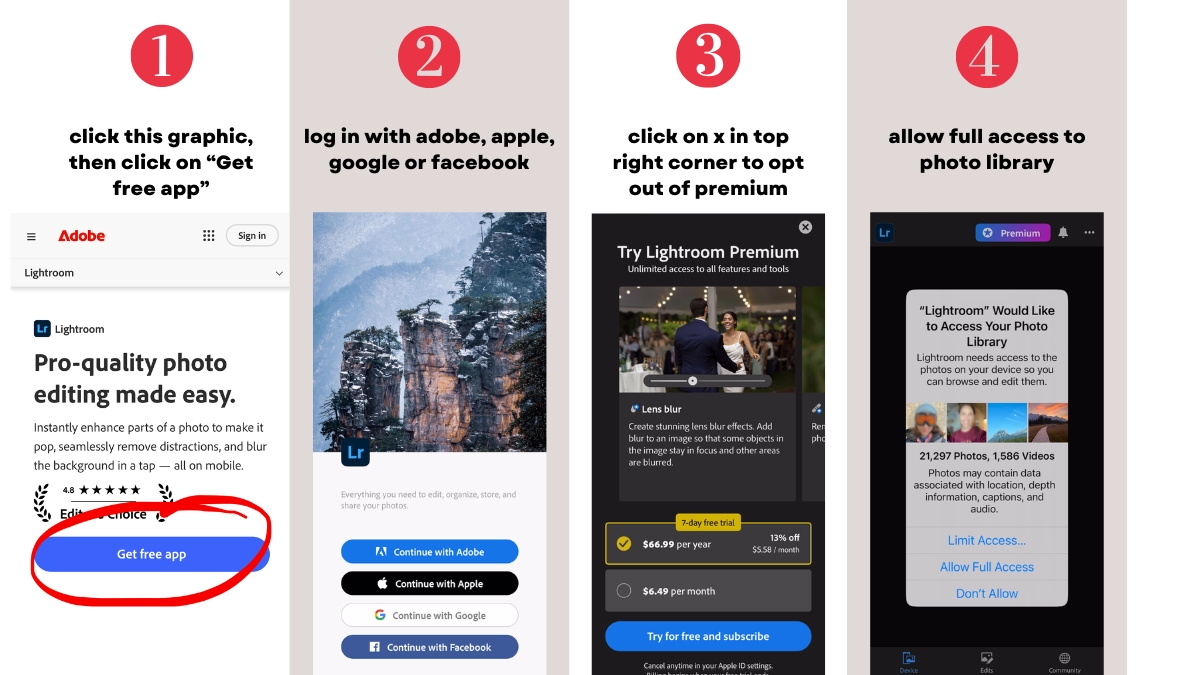
Once it’s installed, open the app and sign in or create a free Adobe account.
The app is free, but when you first install it, it will ask you to start a free trial or pay for premium features. Just X out of those requests unless you’re ready to access the premium features.
How to start editing photos:
From my Photos app on my iPhone, I select the photo I want to edit. I then send it to Lightroom by clicking the “send” icon as seen in the bottom left corner:
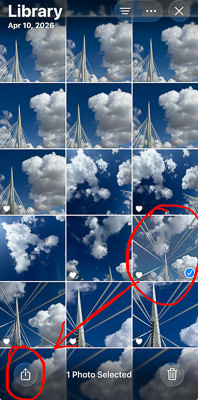
After clicking on the “send” icon:  , select Lightroom from your apps options.
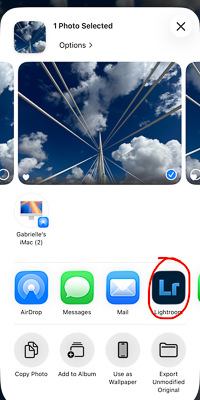
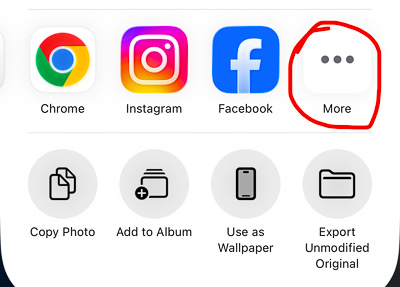
If you don’t see the Lightroom app icon, scroll to the right, click on “more” and select the app.
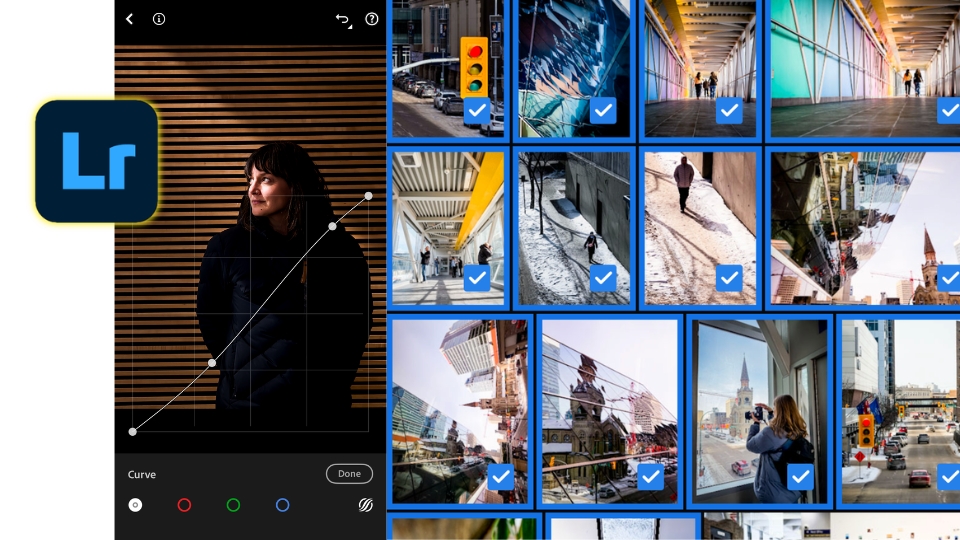
How to edit your phone photos in Lightroom Mobile:
The best way to start is by applying these settings:
- adjusting the brightness
- boosting contrast
- modifying colour saturation
- adding sharpening and noise reduction.
These settings are subjective, so play around until you like what you see!
For more on my favourite Lightroom editing tips, visit my blog post “Why Editing Changes Everything in Photography”
*affiliate link. The app is free, but I get a small commission at no cost to you if you upgrade to premium features.